
Export·7 min
Export Conversations From AI Platforms
Download conversation archives from ChatGPT, Claude, or Gemini before importing them into Losi.
The Losi importer starts working after you have a file or memory summary from the assistant you are leaving. This guide covers the provider side: where to request the export, what file to keep, and when to use a memory prompt instead.
Provider menus change over time, so use the official account settings for the final source of truth. After the archive is ready, use /import or Settings > Imports and preview everything before saving it.
Before you export
- Use the same account that owns the chats you want to move.
- Expect large exports to take time. Some providers email a download link after the export is ready.
- Keep the downloaded ZIP or JSON file intact. Do not unzip and repackage it unless the importer asks for a specific file.
- Review the archive before uploading if it may contain private, sensitive, or unrelated conversations.
ChatGPT conversation export
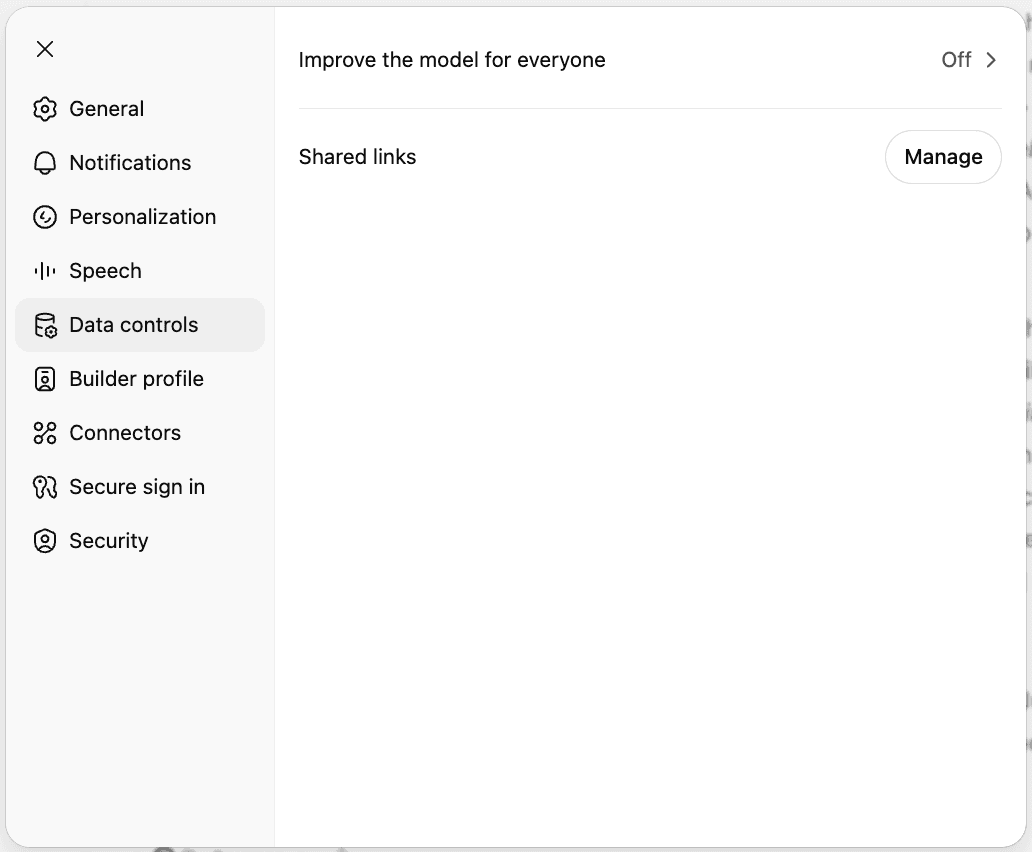
Open Data Controls
In ChatGPT, open the account menu, choose Settings, then open Data Controls.
Request the export
Choose Export Data and confirm the request. OpenAI sends a message when the export is ready.
Download the ZIP
Download the data export while signed in to the same account. OpenAI says exports can take up to 7 days and the download link expires after 24 hours.
Upload it to Losi
Use the conversations importer and upload the ChatGPT ZIP. Losi looks for conversations.json first, then falls back to generic conversation parsing.
Claude conversation export
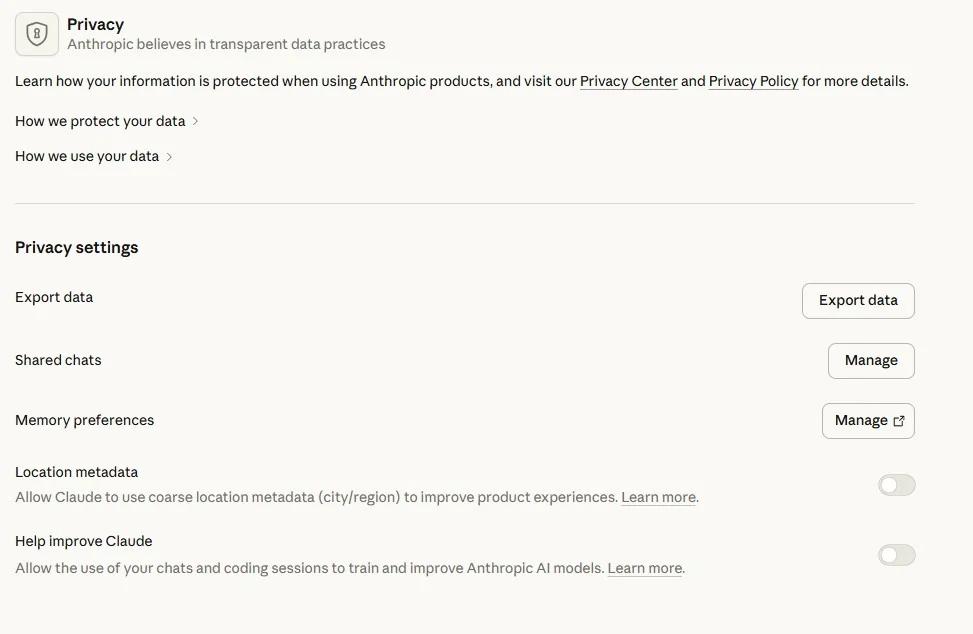
Open Privacy settings
In Claude, open account settings and go to Privacy.
Export your data
Request the data export from the Privacy area. Claude data exports are available for active individual Free, Pro, and Max accounts.
Check plan limits
If the chats belong to a Team or Enterprise organization, Anthropic says the organization Primary Owner handles the export.
Upload the archive
Upload the Claude ZIP, JSON, or JSONL export to Losi and review the preview before importing.
Gemini conversation export
Open Google Takeout
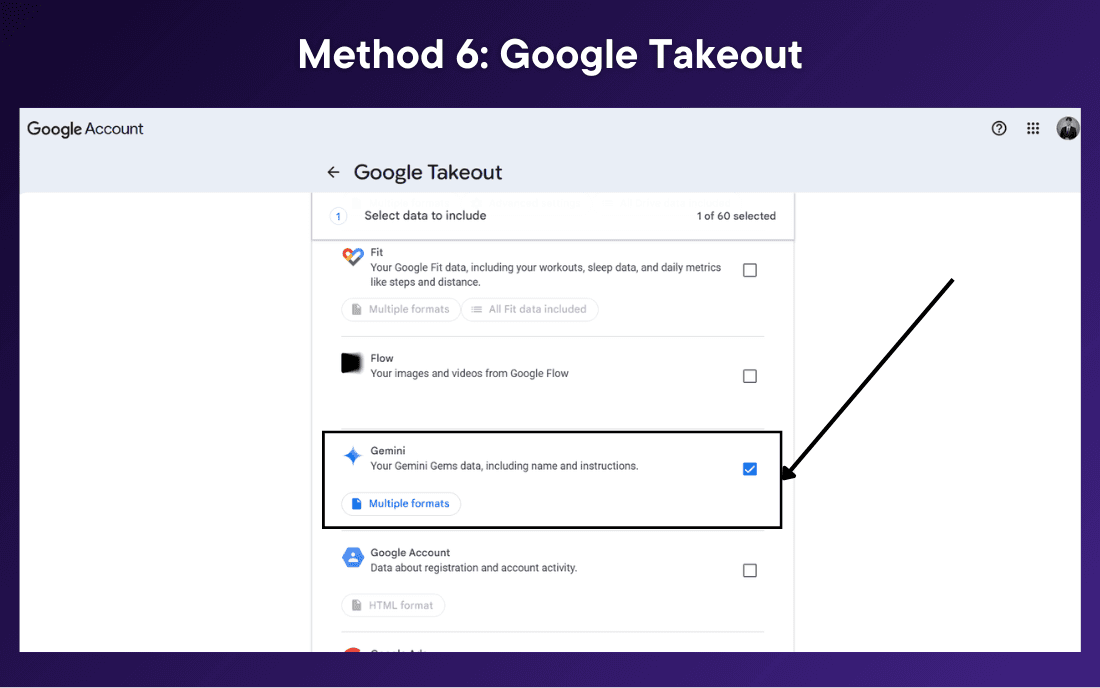
Google Takeout is Google's account-data export tool. Sign in with the Google Account that owns the Gemini activity, then open Takeout to request a downloadable archive.
Select Gemini
Use Deselect all so you do not export every Google product. Select Gemini or Gemini Apps, then continue through the export settings.
Create the export
Create the archive and wait for Google to deliver the download link. Google says Gemini data archives can take a few hours to a few days.
Preview carefully in Losi
Upload the Gemini ZIP or JSON to Losi. Gemini Takeout formats can vary, so review conversation counts, timestamps, and warnings before saving.
Memory prompts are separate
Conversation exports are files. Memory imports can also start from a prompt when a provider does not expose a clean memory file or when you only need durable preferences and instructions.
Use the JSON memory prompt first when the assistant can return valid JSON. Use the text summary prompt when the assistant refuses JSON, returns markdown or prose, or you only need a readable memory summary for Losi to normalize.
Import into Losi
Open the importer
Go to /import, or open Settings > Imports if you are already signed in, then choose ChatGPT, Claude, or Gemini.
Choose conversations
Use the conversation import tab for full chat history archives. Use memory import for saved memories, custom instructions, or memory summaries.
Preview before saving
Check titles, message counts, timestamps, and warnings. Import only the useful conversations you want Losi to keep as context.
Turn the import into work
Ask Losi to summarize imported threads, extract tasks, create notes, or move related work into a Space.