
Developer and tools·6 min
Connect Losi With Integrations, API, and MCP
Understand the difference between Losi Integrations, MCP servers added through Integrations, and the Losi Spaces API/MCP endpoint.
Losi has three separate connection paths. Integrations connect Losi to apps and tools. MCP servers inside Integrations give Losi access to tools hosted by another MCP server. The Losi Spaces API and Losi MCP endpoint let external clients call Losi Spaces tools.
Because these paths use different permissions and setup flows, start from the surface that matches the direction of the connection: Losi using another tool, or another client using Losi Spaces.
Use Integrations to connect apps to Losi
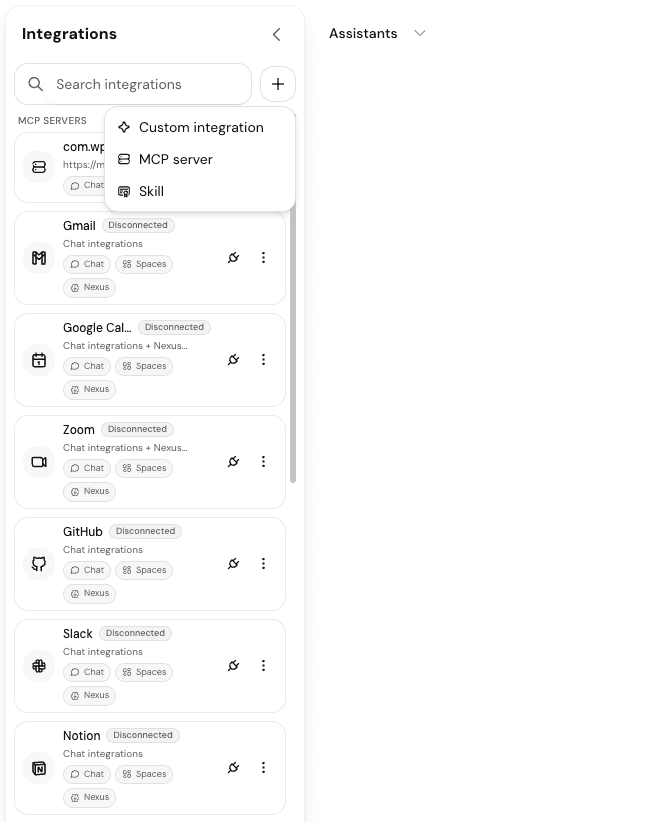
Open the Integrations sidebar when you want Losi to work with another app or tool. This is the user-facing place for standard app connections, custom integrations, skills, and MCP servers that Losi can use.
- Use a normal integration for apps such as calendars, communication tools, CRMs, or workspace services.
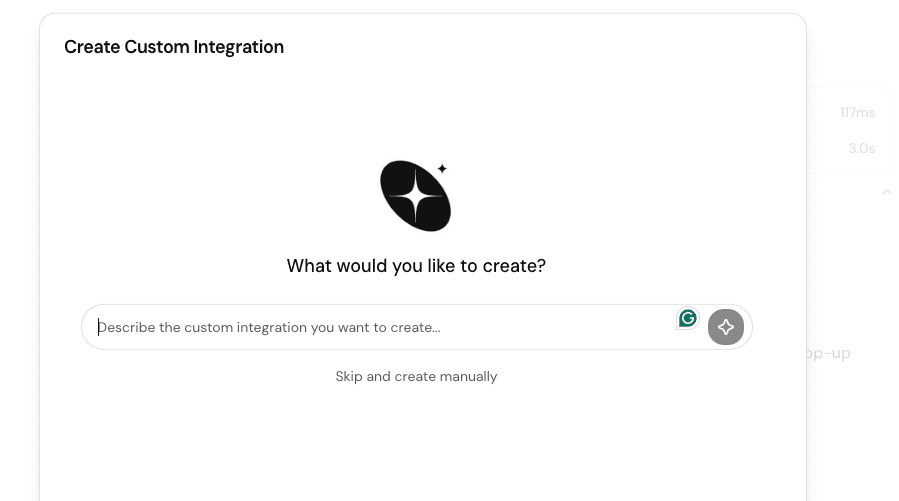
- Use a custom integration when the tool needs a workspace-specific setup.
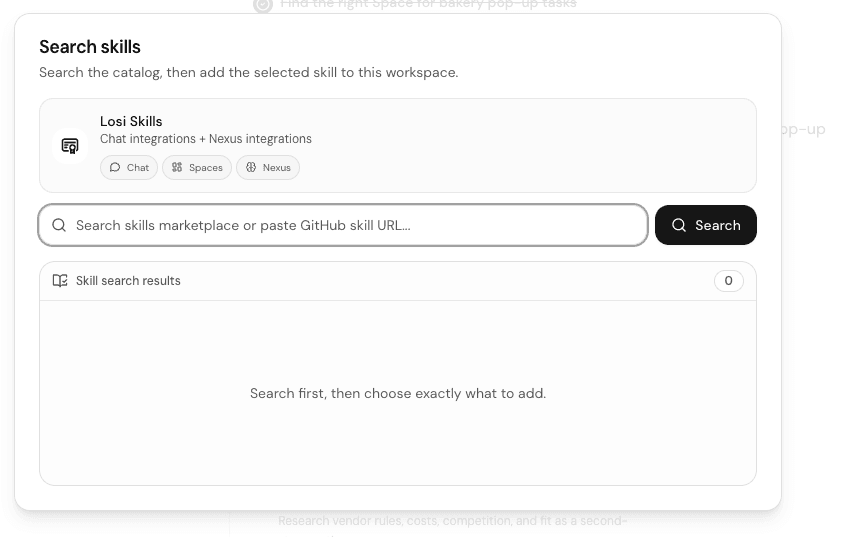
- Use a skill when you are adding a reusable Losi capability instead of connecting an external service.
Add an MCP server when Losi needs external tools
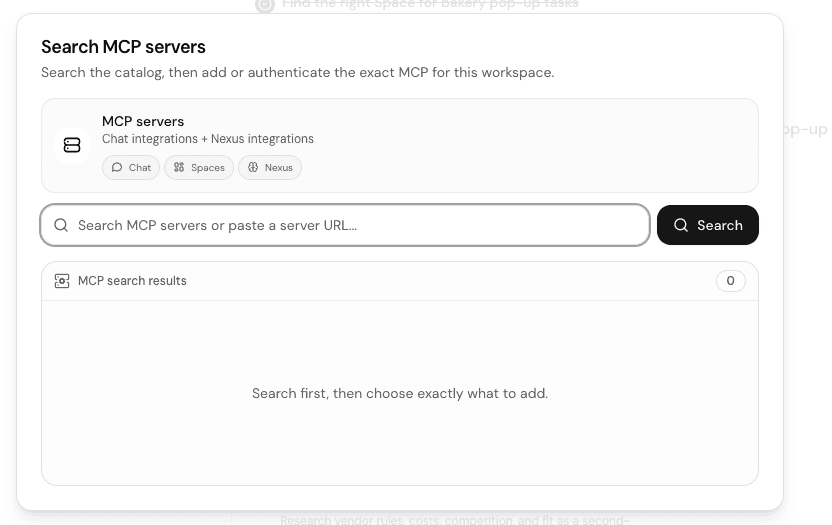
The MCP server option in Integrations is for adding or authenticating an outside MCP server. In that flow, Losi is the client. The connected server provides tools that Losi can call after you approve the setup.
This is different from the Losi MCP endpoint. Adding an MCP server in Integrations does not create the Spaces API, and it does not mean another client can call Losi Spaces.
Use the Losi Spaces API for structured work
The Losi Spaces API is for direct developer calls into Losi. Use it when another system needs to list Spaces, create Spaces, create tasks, list tasks, or create notes in a structured way.
Developer API usage requires valid Losi API credentials and the permissions for the workspace or Space being updated.
Use the Losi MCP endpoint when another client needs Losi tools
The Losi MCP endpoint exposes the same Spaces tool surface through MCP tools/list and tools/call. In this flow, Losi is the server. An MCP-capable client authenticates with a Losi API key or OAuth token, then calls approved Spaces tools.
Use the API Access and Spaces API docs for this setup. The Integrations MCP search flow is for external MCP servers Losi connects to, not for configuring Losi as an MCP server.