Video

Creation6 min

Create Video Storyboards

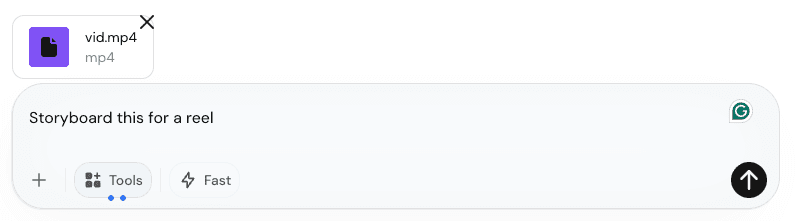
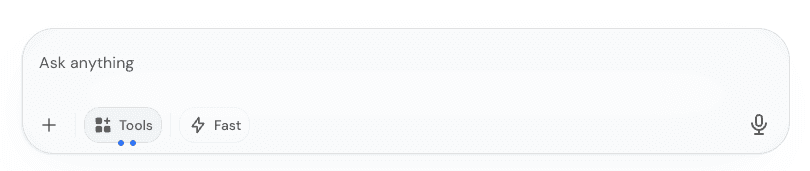
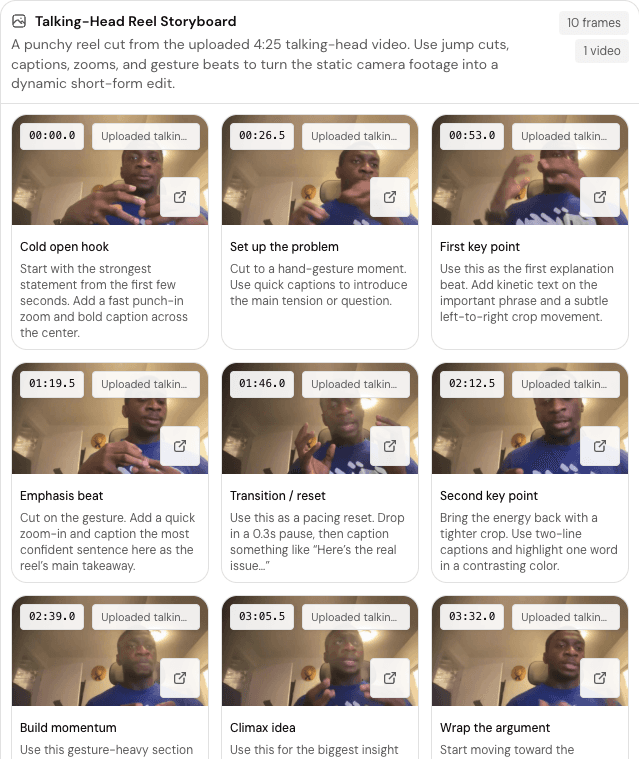
Upload a video and ask Losi for a visual storyboard, editing notes, clip ideas, and timestamped moments.

Use the video workspace when available for your account.

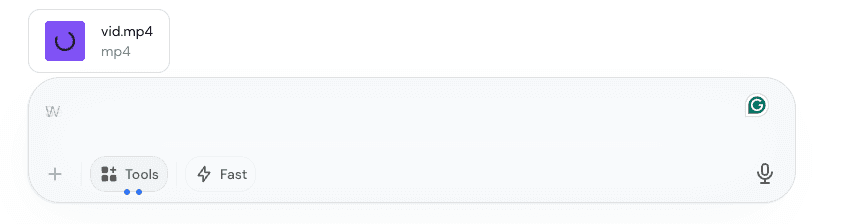
Losi can work with uploaded video context and render storyboard-style results from extracted frames when the video analysis path is available in the current chat flow.

Use this when you want to understand a long recording, find strong moments, plan edits, or turn one video into multiple smaller assets.

What to ask for

  • Detect the hook and the first moment that earns attention.
  • Find the strongest moments and awkward cuts.
  • Create editing notes with timestamps.
  • Suggest short-form clips, captions, and text overlays.
  • Recommend where to cut, repurpose, or tighten the story.

Example prompt

Upload a video, then ask: "Create a visual storyboard with timestamped frames. Identify the hook, strongest moments, awkward cuts, caption ideas, text overlays, and 3 short-form clips I can repurpose."
Review before editing

Treat the storyboard as an editing assistant, not a final cut. Check the timestamps, verify important moments, and keep the parts that match your real goal.
Screenshots to add

These are intentional placeholders for real product captures.

Screenshot placeholderuploaded-video-in-losi.png

Screenshot placeholder: Uploaded video

Show a real uploaded video in chat or the relevant upload surface.

Replace this block with a real product screenshot. Do not use generated UI or fake product captures.
Screenshot placeholdervideo-storyboard-output.png

Screenshot placeholder: Storyboard output

Show the rendered storyboard output from a real uploaded video.

Replace this block with a real product screenshot. Do not use generated UI or fake product captures.
Screenshot placeholdervideo-timestamped-frames.png

Screenshot placeholder: Timestamped frames

Show close-up timestamped frames with titles or captions.

Replace this block with a real product screenshot. Do not use generated UI or fake product captures.
Screenshot placeholdervideo-short-form-clip-plan.png

Screenshot placeholder: Short-form clip plan

Show the editing recommendations and clip plan generated from the video.

Replace this block with a real product screenshot. Do not use generated UI or fake product captures.